 MicroURL
Custom slugs, titles & expiration
Control exactly what your short link looks like, add a memorable title, and set it to stop working automatically.
Click “More options” when creating a link
On the New link form, click More options to reveal the custom slug, title, expiration, and UTM fields.
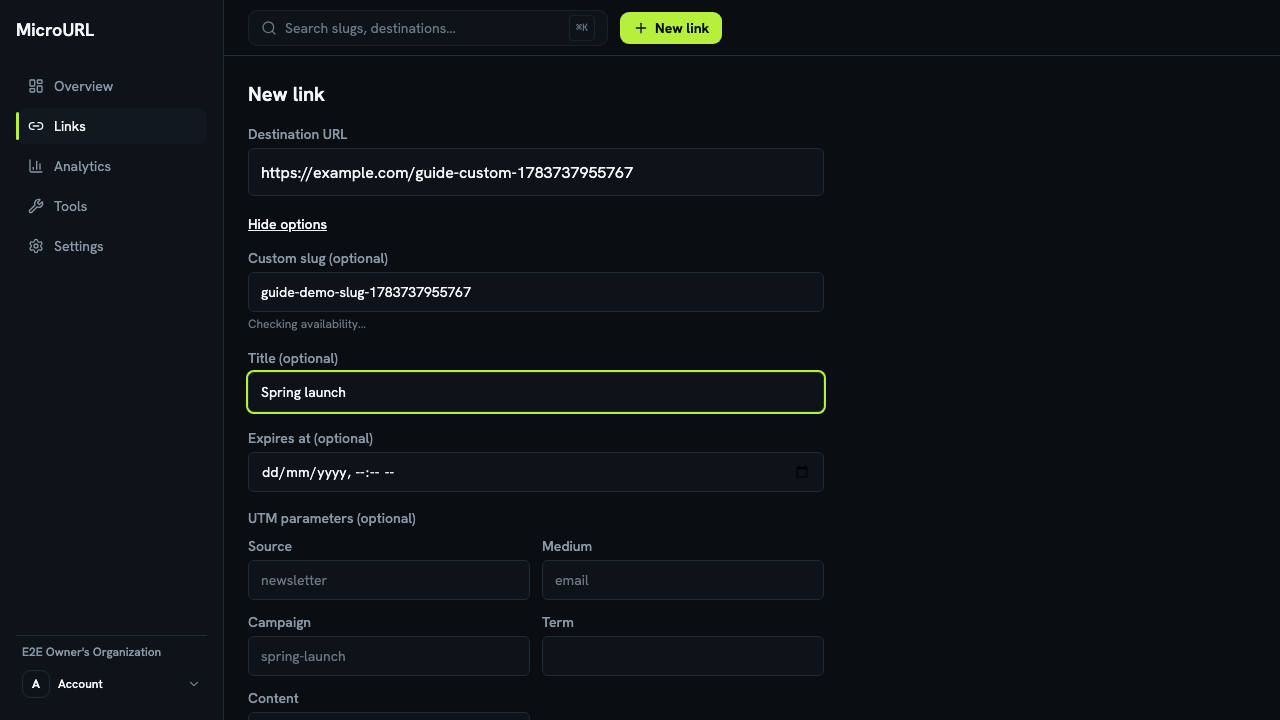
Set a custom slug
Enter a Custom slug (e.g. my-link) instead of the auto-generated one. Availability is checked as you type.
Once set, a link’s slug can’t be changed later — choose carefully.
Add a title and expiration
Title is for your own reference in the dashboard — it’s never shown to people who click the link. Expires at is optional; after that date, the link stops redirecting.
Add UTM parameters (optional)
Fill in Source, Medium, Campaign, Term, and Content to tag the destination URL for your own analytics tools. If you just need to build a UTM URL without creating a short link, use the UTM Builder free tool instead.