 MicroURL
Link-in-bio pages and contact cards
Two kinds of page MicroURL hosts for you, each behind its own short link and QR code. Change the page any time; the link and the printed code stay the same.
Make a link-in-bio page
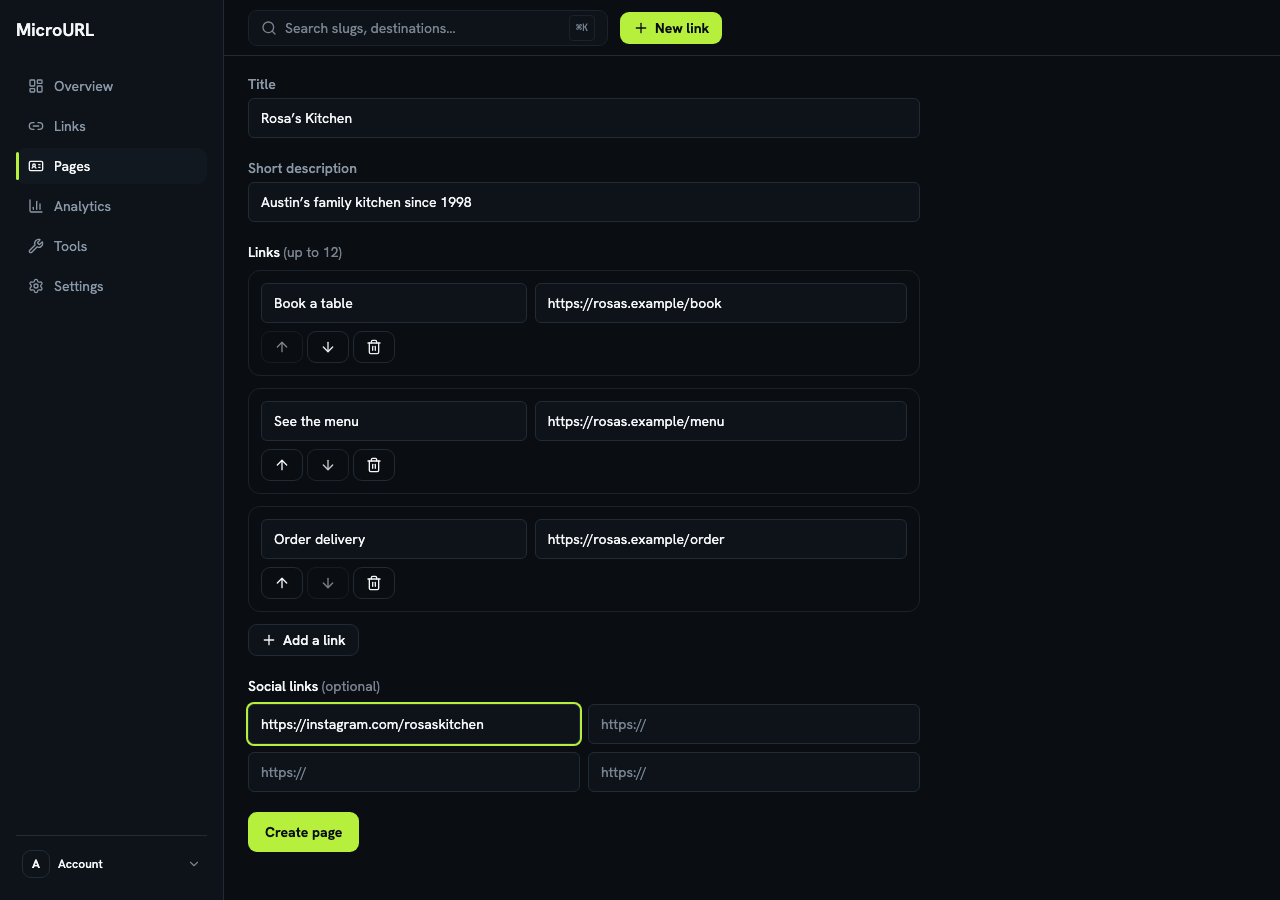
Go to Pages and click New bio page. Give it a title, like your business name, then add up to 12 links, each with a label and a web address. Use the arrows to put the most important one first, and add your social profiles.
Put the short link in your bio
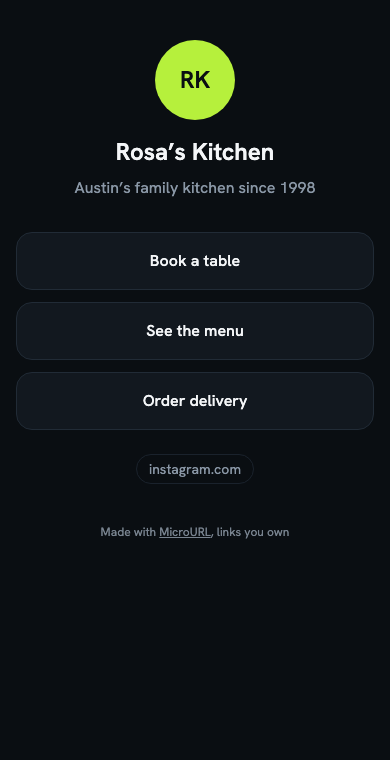
Copy the page’s short link and paste it into your Instagram or TikTok bio, or print its QR code. Visitors see a clean page with your links. If you have your own domain, the link can be on it, like bio.yourbusiness.com.
Edits show up straight away. The page shows how many taps each link got in the last 30 days, and its visits are on the link’s Analytics tab.
Make a contact card
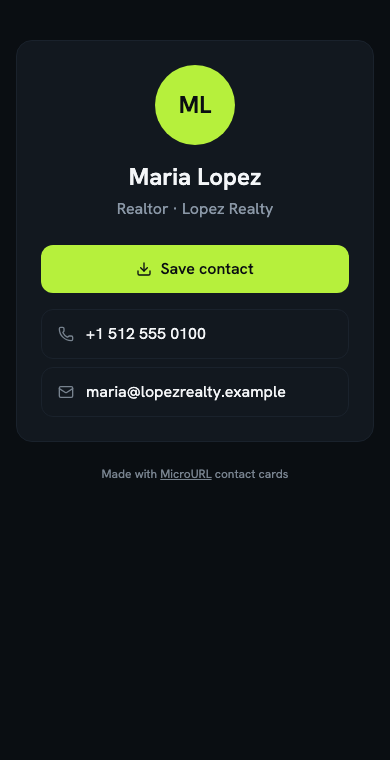
Under Pages, open Contact cards and click New card. Add your name, job, phone, email and website. Print the card’s QR code on business cards, name badges or sign riders: scanning it opens your details with a Save contact button.
Change your phone or job any time and every printed card shows the new details.
A whole team’s cards at once
On the Contact cards page, click From a spreadsheet, download the template, fill in one row per person and upload it. Each person gets a card and a QR code, and Download all QR codes gives you every code in one ZIP for the printer.